STEP 01
Open the Fire TV home screen
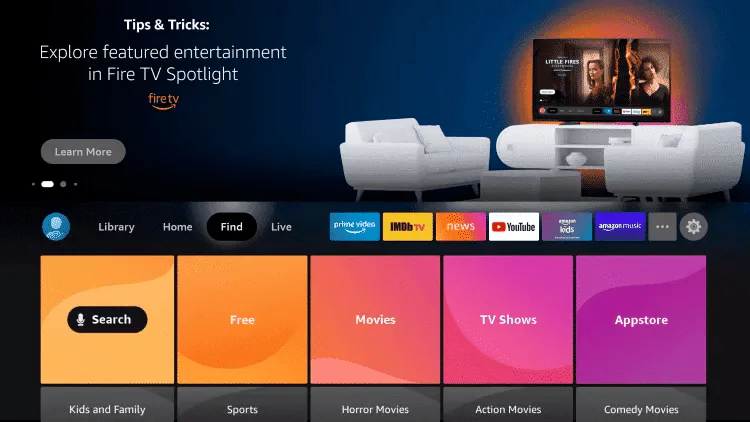
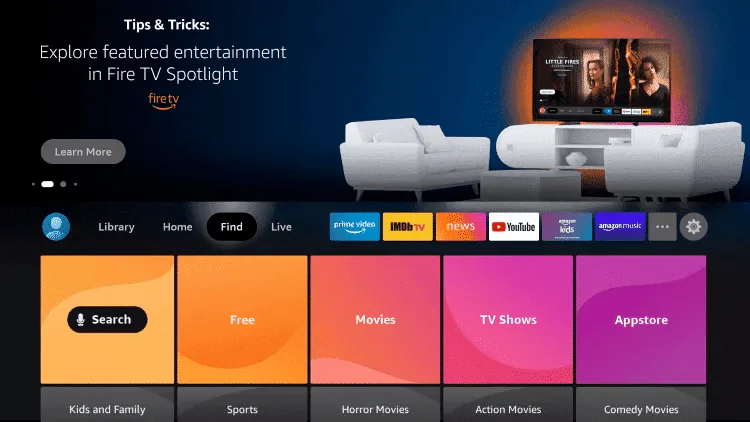
Turn on your Fire TV Stick and make sure it is connected to the internet. From the main home screen you can reach everything you need to get started.
Choose your device below and follow the step-by-step guide to start watching.
Follow each step below. Use the login details sent to you after your order is confirmed whenever account information is required.
Turn on your Fire TV Stick and make sure it is connected to the internet. From the main home screen you can reach everything you need to get started.
Using your remote, move up to the top menu, select Find, and then choose Search.
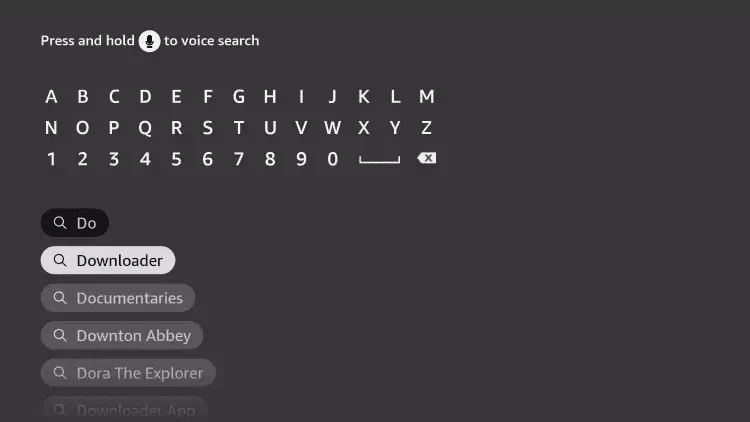
Type Downloader with the on-screen keyboard and select it as soon as it appears in the suggestions.
In the results, highlight and open the orange Downloader app.
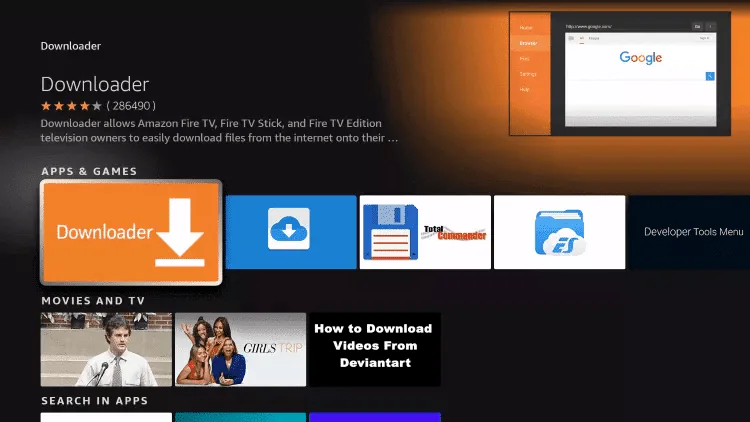
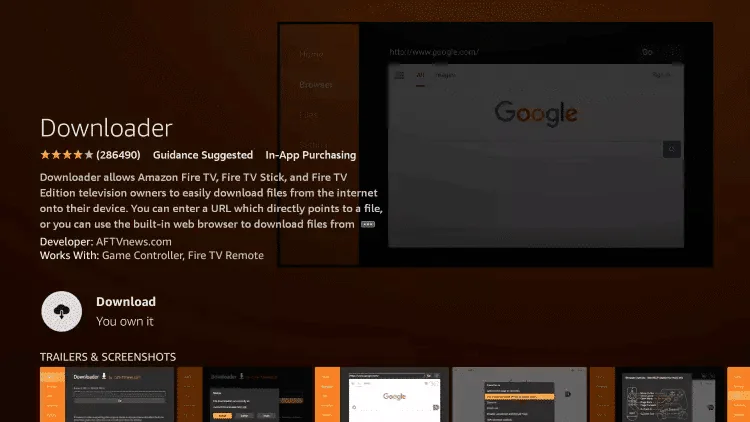
On the app page, select Download (or Get) to install Downloader on your device.
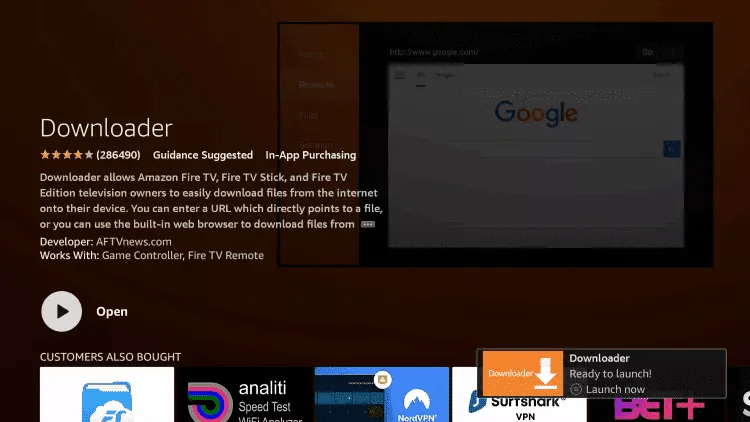
Allow the installation to complete. When it is ready you will see an Open option appear.
Go back to the home screen and open Settings using the gear icon in the top-right corner.
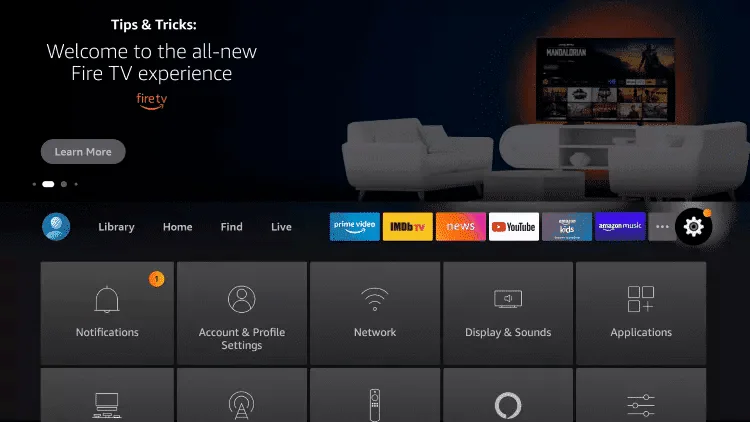
In the Settings menu, move down and select My Fire TV.
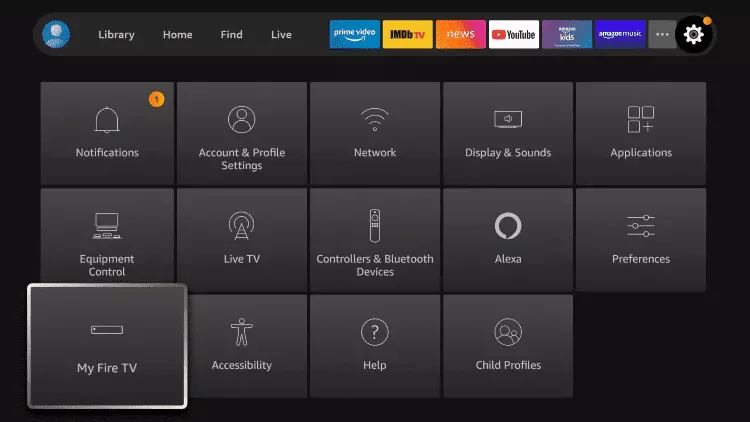
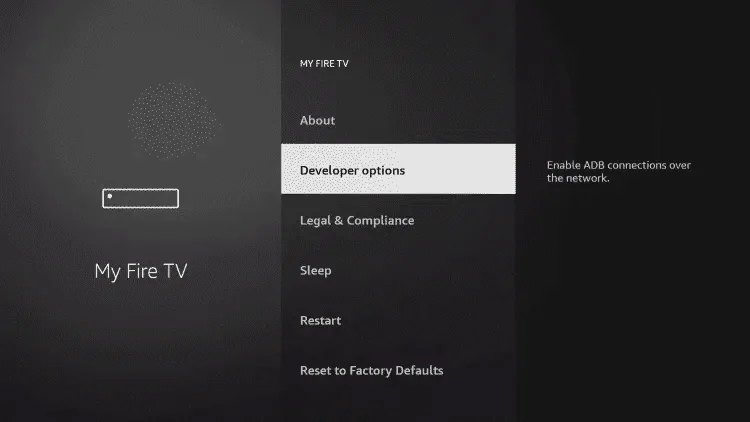
Inside My Fire TV, select Developer options.
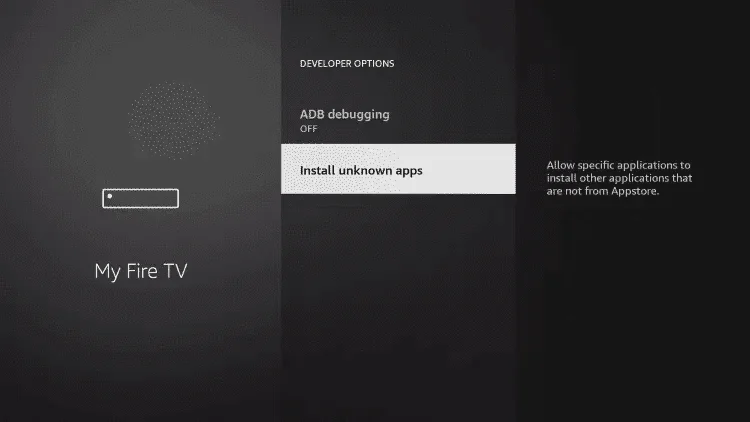
In Developer options, select Install unknown apps.
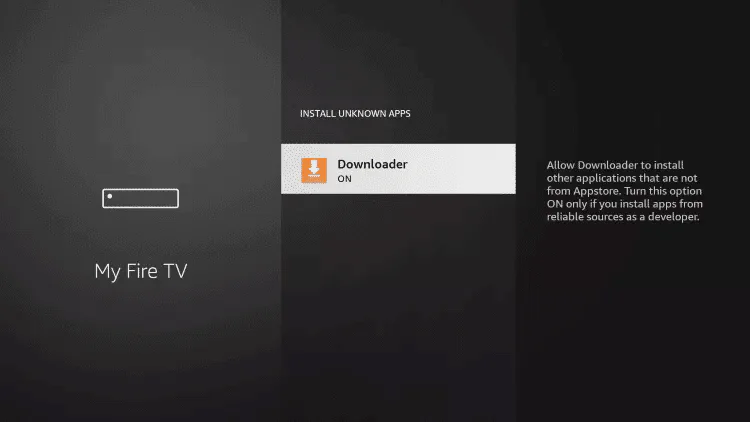
Locate Downloader in the list. By default it will be switched OFF.
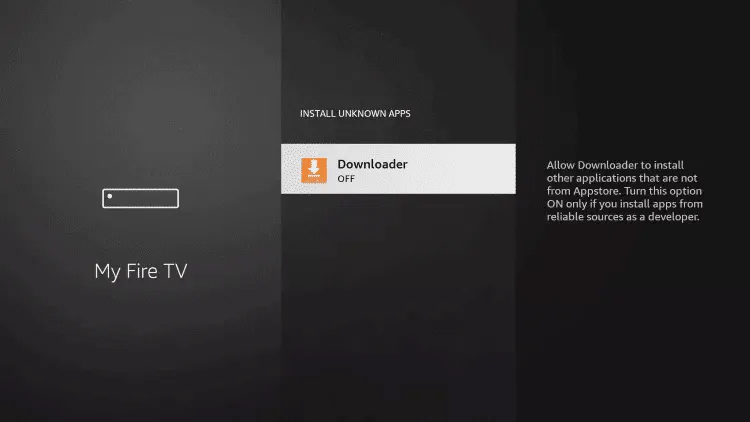
Select Downloader so the switch changes to ON. This lets it install the player app for you.
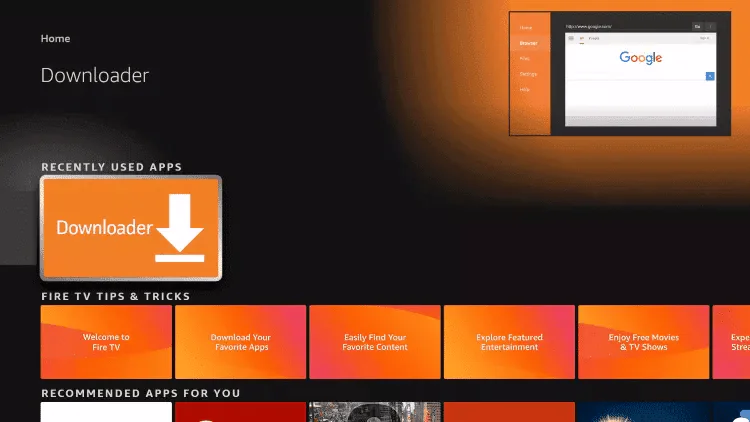
Return to the home screen and open Downloader from your recently used apps.
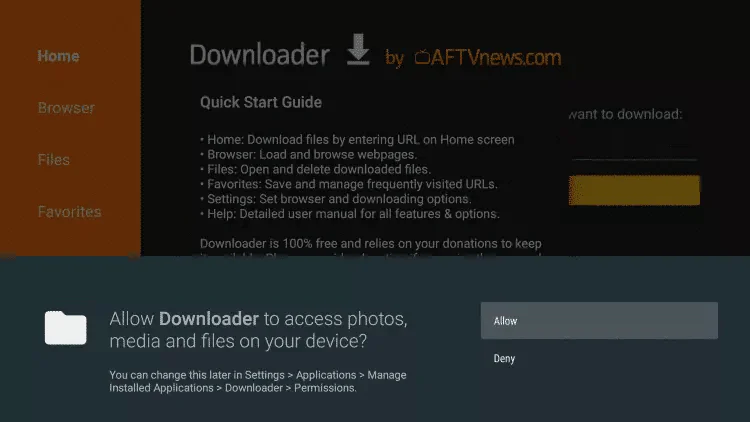
When Downloader asks for permission, select Allow so it can access files on your device.
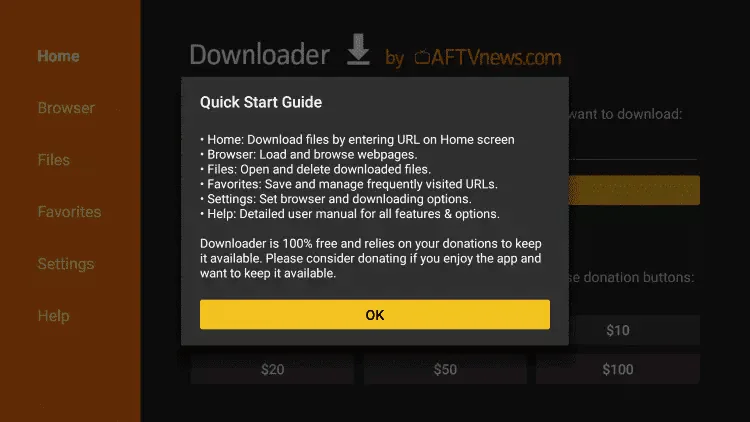
A Quick Start guide will appear the first time you open the app. Select OK to continue.
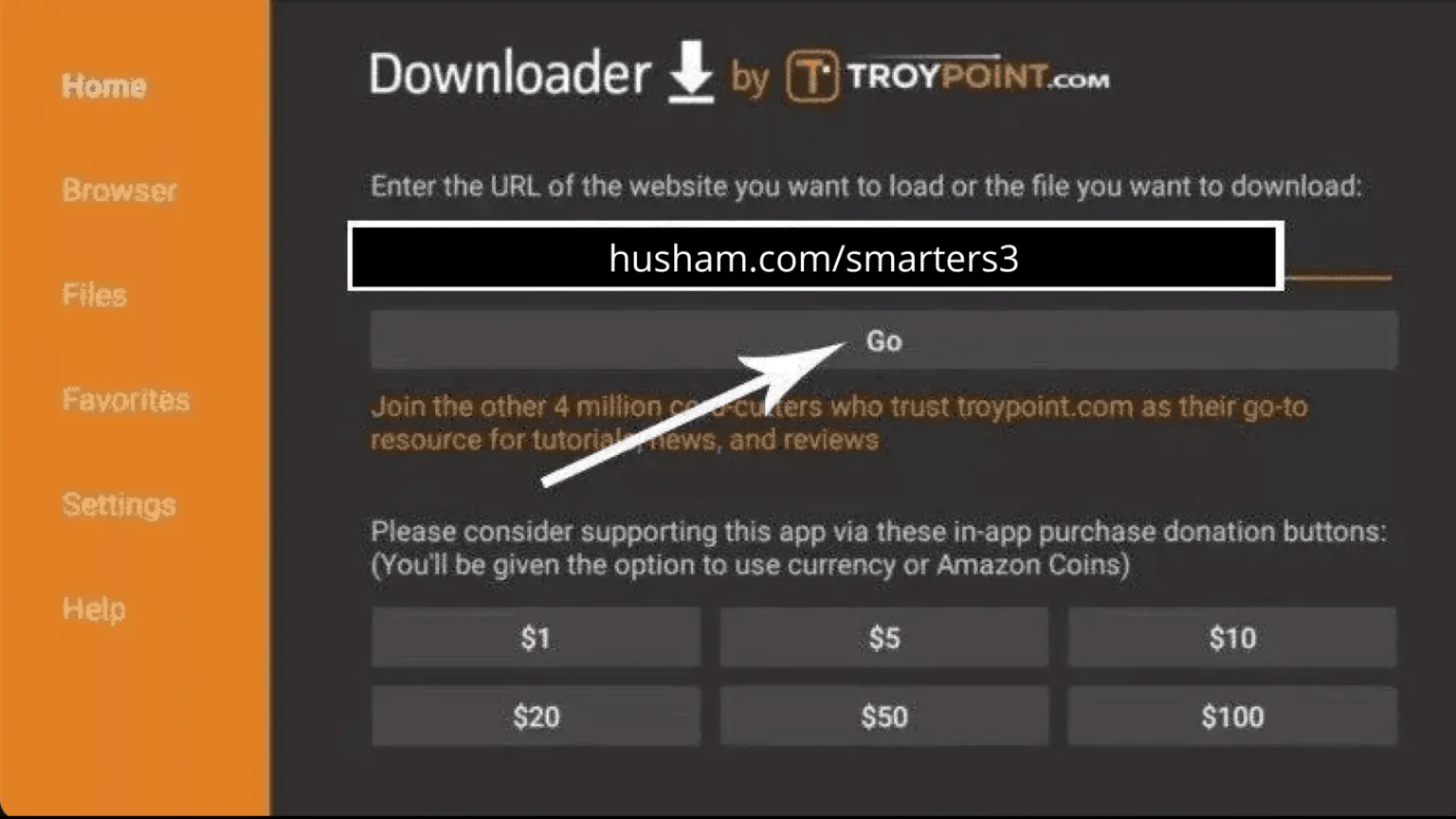
On the Home tab, select the URL box and enter the player download address, then select Go. Use the login details sent to you after your order is confirmed.
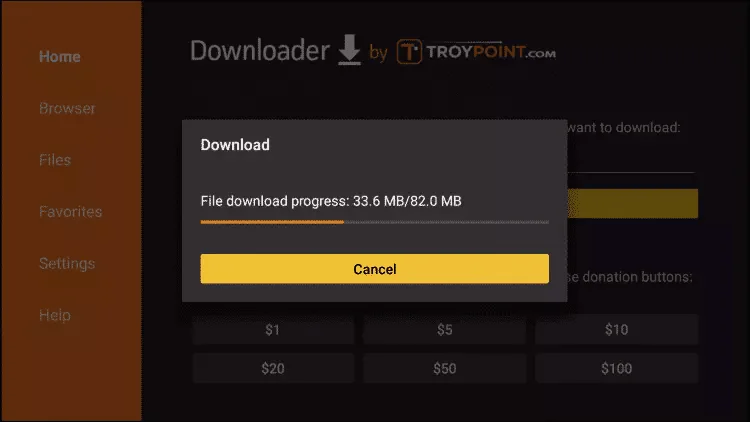
Let the file finish downloading. A progress bar shows how much is left.
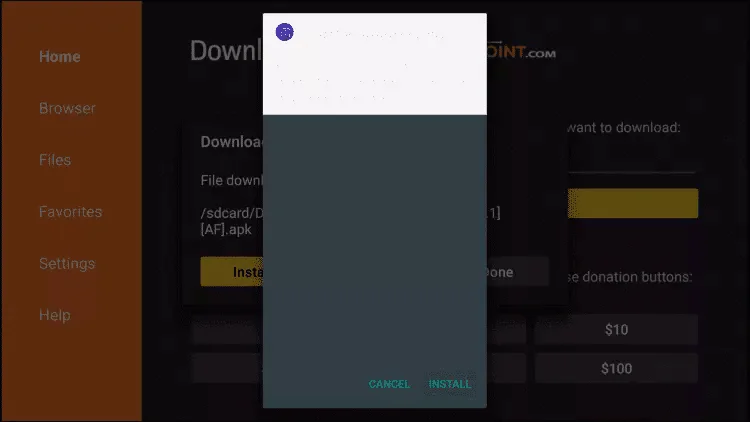
When the download finishes, select Install to install the player app.
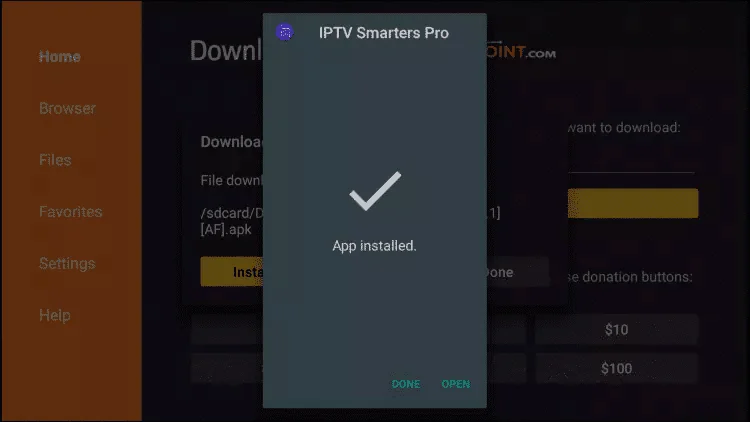
Once you see App installed, select Open to launch the player. Then log in with your details. Use the login details sent to you after your order is confirmed.
Already have the player installed? Follow these two steps to log in and start watching.
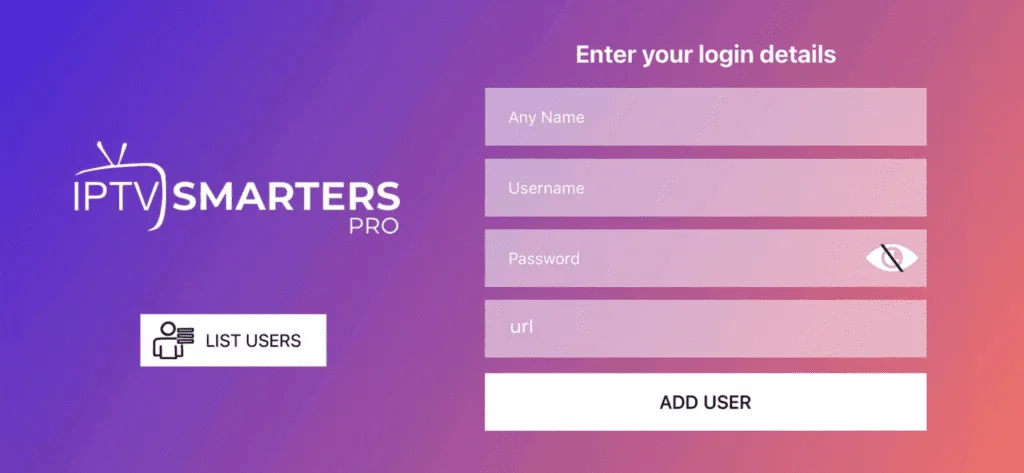
Open the player app and fill in the login screen: choose any name for the profile, then enter your username, password, and the server URL. Select Add User to save it. Use the login details sent to you after your order is confirmed.
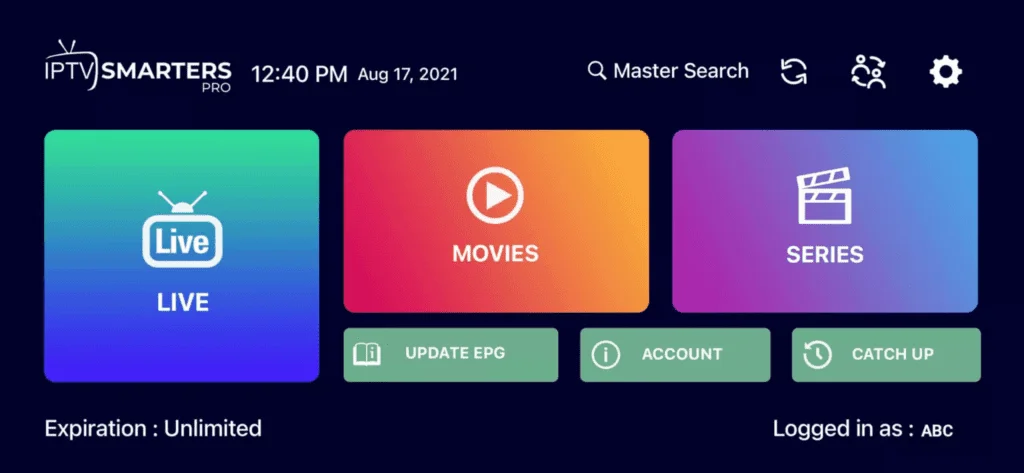
After logging in you will reach the main screen with Live, Movies, and Series. Your setup is complete and you are ready to watch.
Open the player on your iPhone or iPad and follow these two steps to log in and start watching.
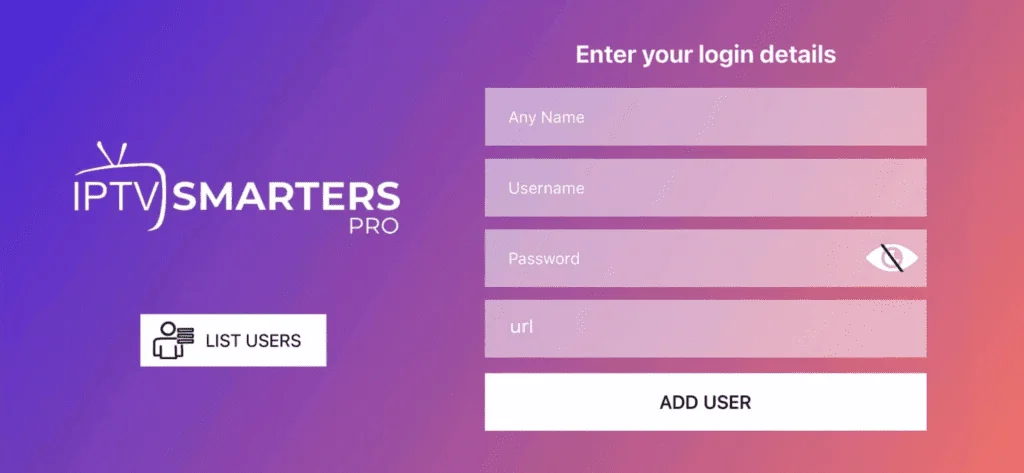
Open the player app and fill in the login screen: choose any name for the profile, then enter your username, password, and the server URL. Select Add User to save it. Use the login details sent to you after your order is confirmed.
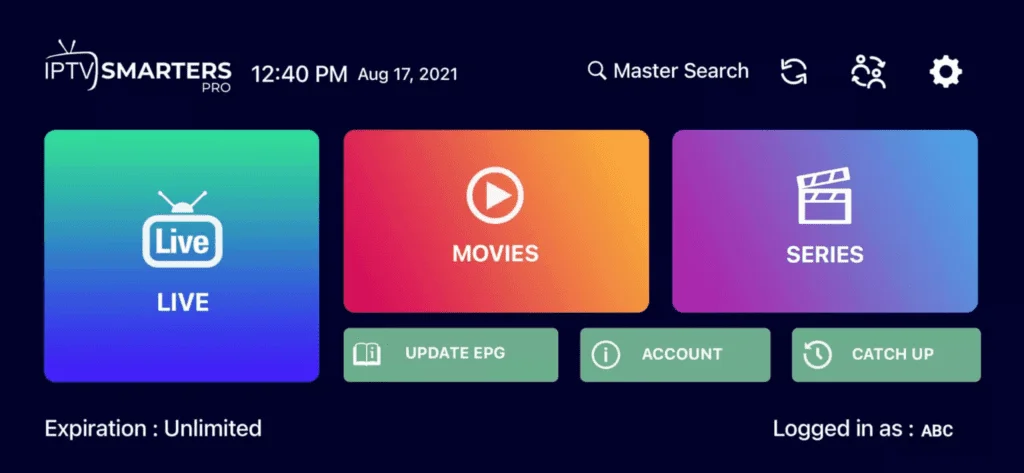
After logging in you will reach the main screen with Live, Movies, and Series. Your setup is complete and you are ready to watch on your iPhone or iPad.
Works with most modern Samsung and LG Smart TVs.
For Windows 10 and 11 laptops and desktops.
For MAG set-top boxes.
Our support team is ready to help you get EthernalTV working on your device.
Email SupportPlease include your device type and order email when contacting support.